How to Create a Navigational Index in Microsoft Word
Step 1: Add Headings to Your Document
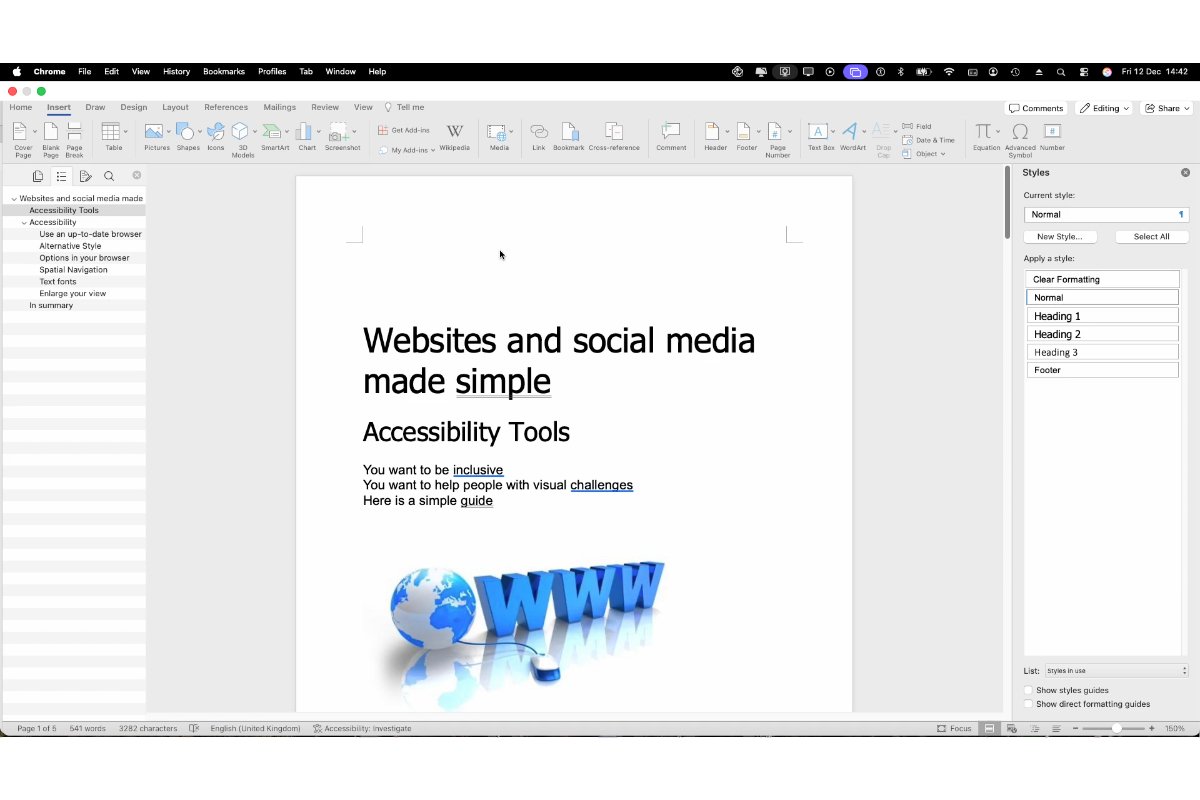
Word uses Headings to generate the navigation.
- Highlight the text you want to use as a section title (example: “Chapter 1”).
- Go to Home tab.
- In the Styles group, click Heading 1 (or Heading 2 for sub-sections).
Do this for all the sections you want to appear in the index.
Step 2: Insert the Navigational Index (Table of Contents)
- Click at the top of your document (or wherever you want the index).
- Go to the References tab.
- Click Table of Contents.
- Choose a style (e.g., Automatic Table 1).
Word will automatically generate a clickable index.
Step 3: Update the Index When You Make Changes
If you add new sections or change page numbers:
- Click anywhere inside the table of contents.
- Click Update Table.
- Choose:
Update page numbers only, or
Update entire table (for new headings)
Step 4: Use the Navigation Pane (Optional)
This helps you see the index structure while working.
- Go to the View tab.
- Tick Navigation Pane.
A sidebar appears showing all your headings as a clickable index.