Windows Outlook (Office 365 or Outlook 2019/2021)
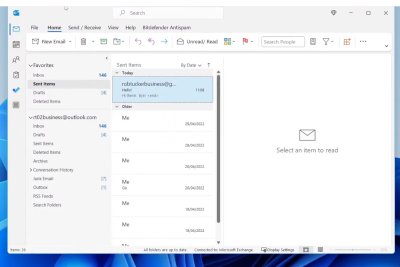
- Open Outlook
- Go to File (top left)
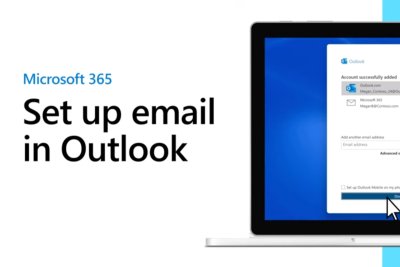
- Click Add Account
- Type your email address
- Click Connect
- A login window will pop up (Gmail/Outlook/Work account)
- Sign in normally
- Approve any 2FA prompt
- Outlook automatically configures IMAP/Exchange/SMTP
- Done — it will start syncing
Outlook is designed to auto-configure 90% of accounts.
Mac Outlook
- Open Outlook
- Go to Tools → Accounts
- Click the + bottom left → New Account
- Enter your email
- Sign in
- Outlook configures everything automatically
Manual Setup (When Auto Fails or for Custom Domains)
You only need this if Outlook says:
“We couldn’t log you in”
“We couldn’t find your server settings”
Windows:
Open Outlook
File → Add Account
Type your email → Advanced options → Let me set up my account manually
Choose:
- IMAP (recommended)
- POP (only if the provider requires it)
- Exchange (workplace)
Outlook will ask for:
- Incoming server (IMAP)
- Port number
- Encryption
- Outgoing server (SMTP)
- Outgoing port
- Password
Common defaults (these work for most hosts):
IMAP (incoming)
- Server: imap.yourdomain.com
- Port: 993
- Encryption: SSL/TLS
SMTP (outgoing)
- Server: smtp.yourdomain.com
- Port: 465 (or 587 with STARTTLS)
- Encryption: SSL/TLS
After entering details:
- Click Next
- Enter your password
- Outlook will test both connections
If both pass, you’re in
Extra things Outlook sometimes needs
If you use Gmail
- Must allow Outlook via Google login
- Gmail → Security → “Less secure apps” is no longer used
- Now uses OAuth2 (browser pop-up login)
If you use iCloud
You need an app-specific password:
Apple ID → Security → App Passwords → Generate
Outlook won’t accept your normal iCloud password.
If 2-factor authentication is enabled
Some providers require:
- Clicking a popup on your phone
- Entering a 6-digit code
- An app password for older Outlook versions